Peachy: Face App & Body Editor
- 4.6
- Rating
- 10.00M
- Installs
- Free
- Price

 Analysis by App-foxy
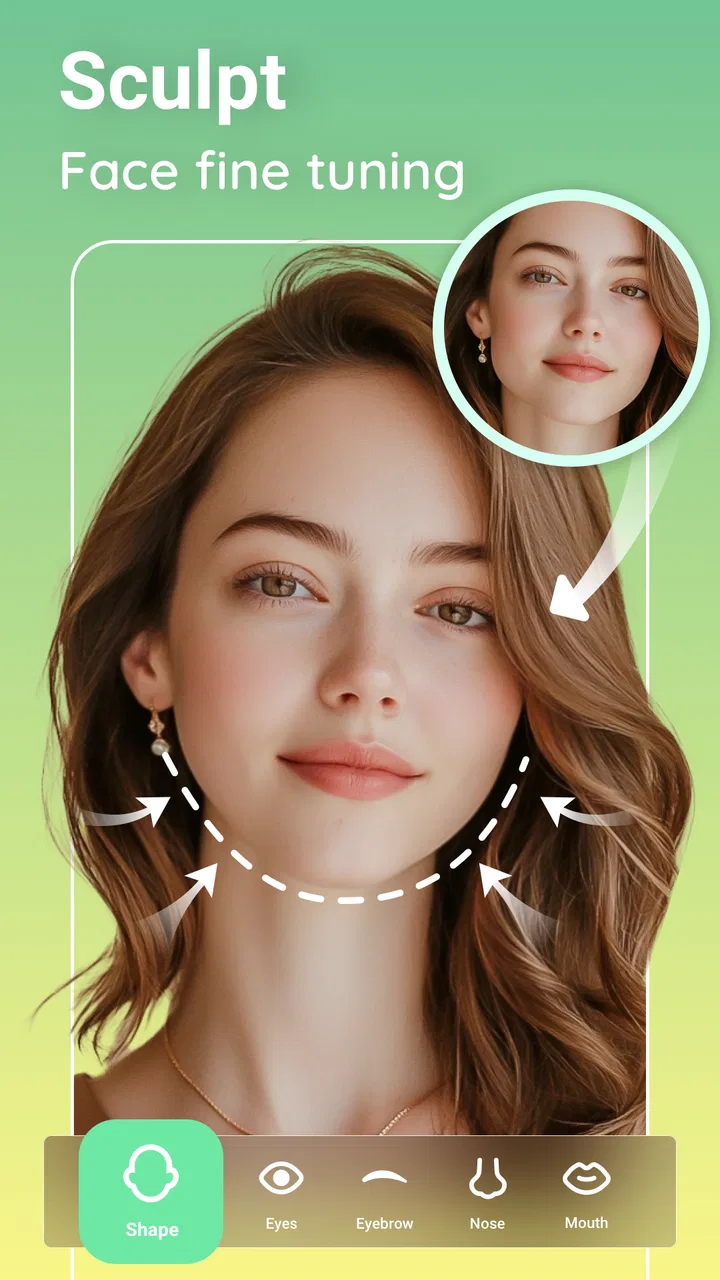
I approached Peachy: Face App & Body Editor as the kind of photography app you open when a normal camera edit is not enough. Its focus is personal appearance: refining portraits, adjusting body proportions, adding makeup-style changes, and using AI-assisted touch-ups rather than simply changing brightness or applying a color filter. After spending time with that style of editing, my main impression is clear: Peachy is most useful when you want a fast, noticeable portrait adjustment without moving into a full desktop editing workflow.
That convenience comes with an important trade-off. The more powerful the correction, the easier it is to create an image that looks overly polished or slightly unnatural. I found the app most convincing when I treated it as a finishing tool and kept the changes restrained. If your goal is a quick profile picture, social post, or personal portrait refresh, it can be a practical choice. If you want detailed control over every pixel, a traditional photo editor remains the better direction.
How I would decide whether Peachy fits
I’d decide whether Peachy fits by looking at the photos I edit most often and how much control I expect over the result. If my usual goal is a quick, focused portrait adjustment, its approach may suit me; if I need broader editing tools, I’d weigh that trade-off before installing. I’d also consider whether I’m comfortable making appearance changes and checking them carefully.
You May Also Like

 Google Keep - Notes and lists
Google Keep’s Quiet Growth Shows the Appeal of Simpler Notes
As mobile work gets busier, Google Keep keeps winning a simple contest: capture a thought quickly, find it later, and get on with the day.

 Blood Strike: 2.5 Anniversary
Blood Strike’s Loadouts Turn Every Drop Into a Tactical Gamble
A close look at Blood Strike’s custom loadouts: how fast access to signature weapons reshapes its battle royale rhythm, rewards preparation, and narrows the gap between fights.

 Pandora - Music & Podcasts
Pandora’s Music Is Easy to Start, but Harder to Recover
Pandora’s strength is its low-effort path from a seed to a station. Its weak spot is how much confidence it asks you to place in connection, setup, and quiet recovery.

 8 Ball Pool
 Is Built on Rivalries, Rematches, and Routine
A close look at the rivalries, rematches, shared routines, and unanswered safety questions that turn a quick pool match into a persistent mobile community.

 Samsung Music
’s Quiet Strength Is Playing What You Already Own
Its reach comes less from spectacle than from dependable access to a personal library. That simplicity is both the app’s strongest retention engine and its ceiling.

 AccuWeather: Weather Radar
AccuWeather Review: A Quick, Clear Forecast for Everyday Decisions
For everyday plans, the best forecast is the one you can understand quickly. AccuWeather makes rain timing, radar, and local conditions easy to act on, with a few trade-offs.
More From Our News Desk



Start with the type of edit you actually need
Peachy belongs to the photography category, but it is more specialized than a general-purpose photo editor. I would not choose it first for organizing a library, making collages, correcting landscapes, or creating elaborate graphic designs. Its strength is concentrated on people in photographs, especially faces and full or partial bodies.
That focus makes the decision fairly simple. If you mostly edit selfies, portraits, outfit photos, or images for social profiles, the app’s tools are aimed at the problem you are trying to solve. If you mainly adjust exposure, crop travel photos, remove distractions from scenery, or work with layers and typography, you may feel constrained compared with a broader editor.
The store summary points toward AI touch-ups, makeup, silhouette refinement, and portrait enhancement. In practice, I see those as separate levels of intervention. A light portrait enhancement can help an image look cleaner, while a silhouette adjustment changes the visual impression of the entire pose. Those are not equally subtle, so I recommend deciding before editing whether you want correction, styling, or transformation.
Think about the original photo before opening the editor
The quality of the source image matters more here than many first-time users expect. A well-lit portrait with a clear subject gives Peachy more useful visual information to work with. A dark image, a face partly hidden by hair, or a body covered by overlapping objects gives you less room for believable adjustments.
My practical workflow is to choose the strongest original first, rather than hoping the app will rescue a weak photograph. I also keep an untouched copy and compare the result with it before saving. That simple step makes it easier to notice when a jawline, waist, skin texture, or facial feature has moved beyond a natural-looking result.
The editing style is quick, not deeply technical
The appeal is speed. You can approach the image with a specific visual goal instead of building an edit from many technical controls. That is helpful when you want an image ready for sharing without learning a complex interface.
However, speed can hide decisions. A one-tap enhancement may combine several changes, and an automatic result is not always appropriate for every face, pose, or lighting condition. I prefer to make one adjustment at a time, inspect the edges and proportions, and then decide whether the edit has genuinely improved the photograph.
Who should use it, and who should skip it
I think Peachy is a strong match for users who want appearance-focused editing with a short learning curve. It suits someone preparing a profile image, polishing a portrait for a post, or experimenting with makeup and body presentation without opening a professional editor.
I would be more cautious if you need consistent retouching across a large collection of images. A dedicated desktop workflow usually offers better repeatability, file management, and fine control. I would also skip Peachy if you dislike beauty filters in general or prefer photographs to preserve every visible detail exactly as captured. The app is designed to change appearance, not merely document it.
What the basic commitment looks like
Peachy is free to download, which makes it easy to test without making an immediate purchase decision. It is rated for Everyone 10+, so families should still remember that appearance-editing tools can influence how younger users think about their own photographs, even when the app itself is accessible to that age group.
Optional purchases range from $0.99 to $39.99 per item. I would not pay before trying the precise tools I care about. The sensible approach is to explore the free experience, identify whether the workflow feels comfortable, and only then consider whether an optional purchase is worthwhile for your routine.
Where Peachy wins over broader editors
The biggest advantage is focus. General photo editors often give you a large toolbox, but that can make a simple portrait task feel unnecessarily complicated. Peachy starts from the assumption that the subject is a person and places appearance-related decisions closer to the main workflow.
That matters when time is limited. Imagine taking a quick portrait before leaving for an event. You notice uneven lighting, a tired-looking complexion, and clothing that does not sit quite as you expected. With a general editor, you might need several separate techniques. In Peachy, you can approach the image as a portrait and work through those concerns in a more direct sequence.
Its combination of face and body editing is another useful distinction. Some apps concentrate almost entirely on skin or facial features, while others are built around filters and color. Peachy gives you a place to consider the whole presentation, from portrait refinement to silhouette changes. That can be convenient for full-body images where a face-only editor would leave the main concern untouched.
Use AI as a starting point, not as the final judge
The AI-oriented approach is useful when you want a quick first pass. It can help you see what kind of enhancement might suit the photograph before you spend time refining it. I especially like that idea for users who know what looks wrong in an image but do not know which technical control would fix it.
My tip is to treat the automatic result as a suggestion. Zoom in around hairlines, shoulders, fingers, clothing edges, and the outline of the face. Those areas can reveal whether the adjustment has blended cleanly. A result that looks excellent at thumbnail size may show distracting distortions when viewed more closely.
The most convincing edit is usually the one that solves one visible problem without announcing that it was edited. I get better results by reducing the intensity of a dramatic correction than by stacking several strong effects. This is particularly important with silhouette tools, because small changes can alter posture and clothing shape in ways that viewers notice even if they cannot explain why.
Makeup and portrait tools work best with a defined purpose
Makeup-style editing can be fun for experimentation, but I would use it differently depending on the photograph. For a casual selfie, a bolder look may be the point. For a professional profile image, I would keep the effect closer to subtle color and texture refinement so the result still resembles me in ordinary lighting.
Before applying a makeup effect, I consider the original white balance and shadows. A warm indoor image can make added color appear stronger than expected, while a bright outdoor portrait may need a lighter touch. Checking the result against the original after each change prevents the familiar problem of correcting one issue while creating another.
Body editing requires extra restraint
Body and silhouette tools are where Peachy becomes more powerful, but also where I see the greatest risk of an unconvincing image. The background is an important clue. Straight lines, door frames, tiles, furniture, and patterned clothing can make even a small shape adjustment obvious.
For that reason, I would use body refinement mainly for minor presentation changes rather than dramatic reshaping. If the background bends or a garment develops an unnatural contour, the edit is no longer helping the photograph. I also recommend checking the full image instead of concentrating only on the body area; proportions can look acceptable close up but strange when viewed as a whole.
A less obvious use is correcting the visual effect of posture. Sometimes a person does not need a body change at all; a slight adjustment can compensate for an awkward angle or an uneven stance. Even then, I would compare several versions and choose the one that preserves the original pose most faithfully.
Portrait enhancement is not the same as restoration
Peachy is appealing for modern portrait polishing, but I would not treat it as a restoration studio for damaged or historically important photographs. Enhancement can improve the appearance of a current portrait, yet it should not replace careful restoration when the goal is to preserve original detail and character.
This distinction also helps with expectations around skin. Smoothing can make a portrait look cleaner, but removing every texture can flatten the face and make lighting appear artificial. I prefer leaving some natural detail visible, especially around the eyes and mouth, because those areas carry much of a person’s expression.
Where a different category may fit better
A broad mobile editor is a better option when your project includes exposure correction, selective color, object removal, text, compositing, or detailed cropping. Those apps may take longer to learn, but they are more flexible when the image needs several unrelated kinds of work.
A dedicated selfie or beauty camera may fit better if you want live effects while taking the picture rather than editing an existing image afterward. The advantage there is seeing the style before pressing the shutter. Peachy makes more sense when you already have the photograph and want to work on it afterward.
For professional retouching, I would choose a tool with precise masks, non-destructive layers, and stronger control over individual adjustments. Peachy’s convenience is valuable, but convenience is not the same as precision. If a client expects consistent skin texture, exact proportions, or a repeatable production process, a professional workflow is safer.
There is also a creative difference between a filter app and Peachy. Filters change the overall mood through color and atmosphere, while Peachy concentrates on the person. If your main interest is vintage color, cinematic tones, or artistic overlays, a filter-focused app may give you more satisfying results with less temptation to alter facial or body features.
The hidden cost is not only money
When comparing Peachy with alternatives, I would also consider the cost of switching between apps. A portrait may begin in a camera app, move into Peachy for appearance edits, and then go to another editor for text or color. Every extra step creates another saved version, another chance to compress the image, and another opportunity to forget which edit is the original.
My advice is to decide the final destination before editing. If the image only needs a portrait adjustment, keep the workflow inside Peachy and save a clean final version. If you know you will add graphics or make a detailed color correction elsewhere, perform the appearance edit carefully and keep the exported result at the highest practical quality available in your workflow.
I also avoid repeatedly opening and saving the same image after multiple rounds of changes. Instead, I keep the original, create a working copy, and make a final export only after the look is settled. This is a small habit, but it reduces confusion when comparing versions or deciding to undo an edit later.
What to expect from the current app
Peachy was released on Oct 17, 2023, and the current version is 1.250.69. It supports Android 7.0 and later, which covers a broad range of devices. On a compatible phone, I would still expect the experience to vary with screen size, camera quality, and how demanding the chosen edit is.
The app comes from InShot Video Editor, a developer already associated with creative mobile tools. That background fits Peachy’s straightforward, creator-oriented feel: it is designed to help someone produce a shareable result directly from a phone, rather than reproduce the full complexity of a desktop retouching suite.
Its audience is substantial, with over 10 million installs, and the app holds a 4.7 average from around 124 thousand ratings. Those figures suggest that the focused portrait workflow resonates with many users, but they do not remove the need to judge the editing style for yourself. Popularity cannot tell you whether you will prefer natural corrections or more visible transformations.
Questions I would answer before installing
If you are wondering whether it is genuinely free, the answer is that you can start without paying, while optional in-app purchases are available. I would test the tools that matter to you first, because the value of a paid option depends on whether you edit portraits regularly or only occasionally.
If you are asking whether it replaces a normal photo editor, I would say no. It can replace one for a narrow portrait task, especially when speed matters, but it is not the right single tool for every photographic project. I would keep a general editor available for images that need broader corrections.
If you want to know whether results will look natural, that depends more on your editing choices than on the app alone. Use small adjustments, inspect backgrounds and facial edges, and compare the result with the original. Peachy can produce a polished image, but it also makes over-editing easy because the controls are built around visible appearance changes.
If you are concerned about using it on an older Android phone, the stated minimum is Android 7.0. Compatibility is therefore not limited to only the newest devices, although the practical smoothness of editing can still depend on the phone itself and the complexity of the image.
Finally, if you are deciding between Peachy and a professional editor, ask whether you value speed or control more. Peachy wins when you want a focused portrait workflow with less technical setup. A professional editor wins when you need exact selections, repeatable adjustments, and a broader range of image work.
My recommendation after weighing the trade-offs
I recommend Peachy to anyone who regularly edits selfies, portraits, or body-focused photographs and wants a direct mobile workflow. The combination of face refinement, makeup-oriented editing, silhouette tools, and portrait enhancement gives it a clear identity instead of making it another all-purpose filter app.
I would use it with a light hand and a specific goal. Correct a distracting issue, check the edges, compare the result with the original, and stop before the image loses its connection to the person in it. That approach makes the app much more useful than simply applying every available effect.
I would skip it if your priority is landscape editing, professional retouching, live camera effects, or complete manual control. In those cases, another category will serve you better, even if it takes more time to learn.
For me, the final decision is straightforward: Peachy is worth trying because it is free to start and unusually focused on appearance-based portrait editing. Its best results come from restraint, not from maximum transformation. If that matches the kind of photographs you make, it can become a convenient part of your phone-editing routine; if you want your editor to do everything, look elsewhere.
FAQs for Peachy: Face App & Body Editor
01What features does Peachy: Face App & Body Editor offer?
Peachy provides a range of features for enhancing photos, including tools for reshaping the body, smoothing skin, whitening teeth, and adjusting facial features. It offers filters and effects to add artistic touches to images, making it a versatile tool for both subtle edits and dramatic transformations.
02Is Peachy: Face App & Body Editor user-friendly for beginners?
Yes, Peachy is designed with an intuitive interface that caters to both beginners and experienced users. The app provides straightforward controls and step-by-step guides, ensuring that even those new to photo editing can easily navigate and use its features without a steep learning curve.
03Does Peachy offer any in-app purchases or subscriptions?
While Peachy is free to download and use, it offers in-app purchases for additional features and effects. There is also a subscription model that unlocks premium content, such as exclusive filters and advanced editing tools, providing enhanced capabilities for users who want more from the app.
04How secure is my data when using Peachy: Face App & Body Editor?
Peachy prioritizes user privacy and data security. The app does not store personal photos or edits on its servers, ensuring that all images remain on your device. However, it’s important to review the privacy policy for detailed information on data handling and permissions.
05Can Peachy: Face App & Body Editor be used offline?
Yes, Peachy can be used offline, allowing you to edit photos without an internet connection. Most features are accessible without needing to be online, making it convenient for users who want to edit on the go or in areas with limited connectivity.
Pros
- User-friendly interface enhances experience.
- Wide range of editing tools available.
- Real-time edits for quick adjustments.
- High-quality photo export options.
- Customizable filters for unique styles.
Cons
- May require in-app purchases for features.
- Can be resource-heavy on older devices.
- Limited free version features.
- Occasional ads interrupt workflow.
- Some edits may look unnatural.

Peachy: Face App & Body Editor
Gallery